Presentify Alternative for Mac — HoverBoard Screen Annotation Tool
On this page
Looking for a Presentify alternative, a Mac presentation tool, or an app to draw on your screen during Zoom? HoverBoard is a broader screen annotation tool for Mac that adds teaching, focus, whiteboard, notes, and local recording workflows around live presentations.
If you teach online, run workshops, present software, record tutorials, or share your screen every day, a slide deck is only part of the job.
At some point, you need to circle something, draw an arrow, make your cursor easier to follow, zoom into a detail, or pause the screen while you explain what everyone is looking at. Switching to another app in the middle of that explanation is usually enough to break the flow.
That is why presentation overlays such as Presentify are useful. They put annotation and pointer tools directly over the screen you are already sharing.
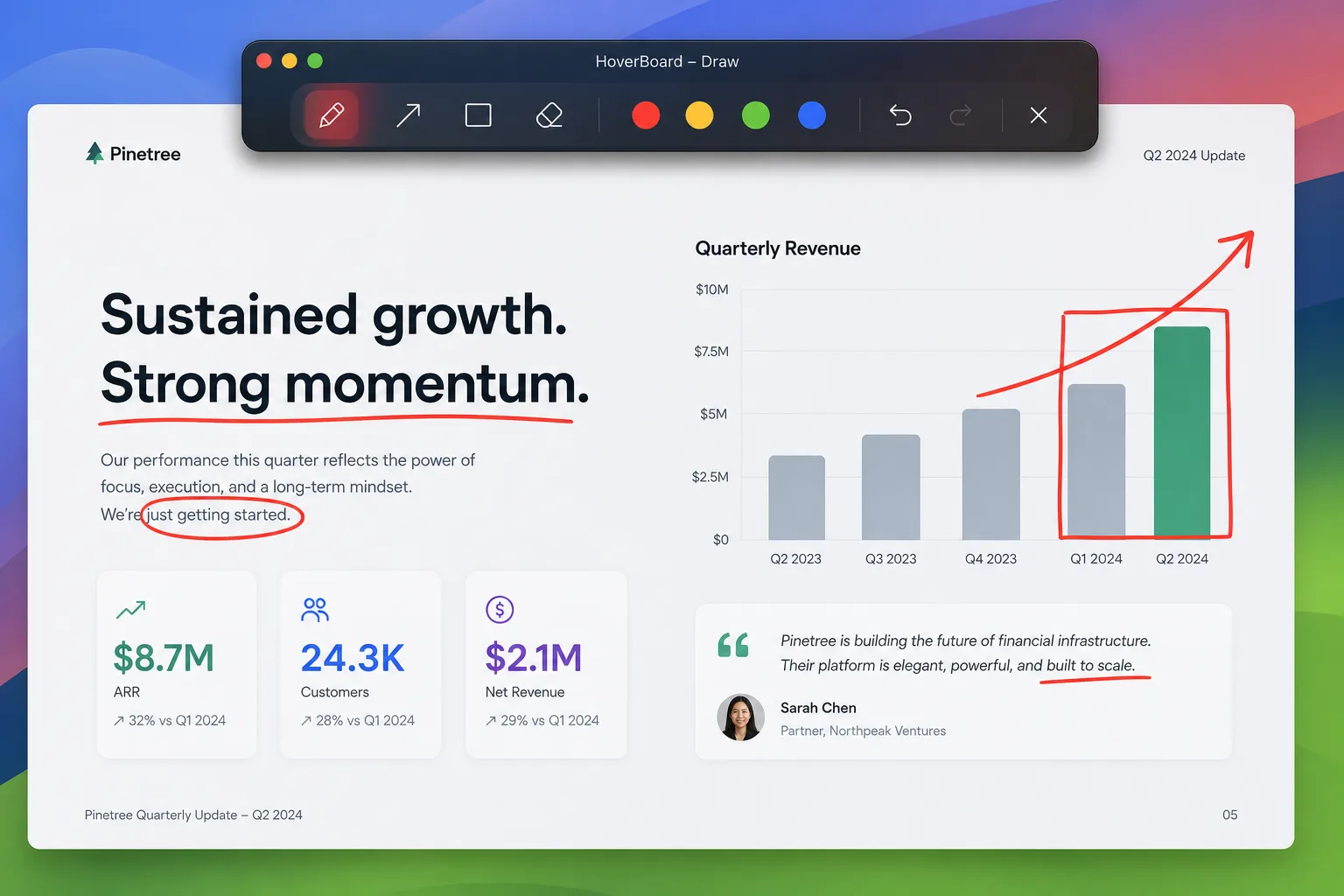
HoverBoard follows the same core idea, but expands it into a broader toolkit for presenting, teaching, demonstrating, and capturing ideas on macOS. If your search was simply “screen annotation app Mac”, HoverBoard covers that core use case while also giving you Freeze, Whiteboard, Cursor Halo, Keystroke Display, Notes, and Sessions.
The short version
Presentify is a focused screen annotation tool. It is a good fit when you mainly need to draw, highlight, spotlight, and zoom while presenting.
HoverBoard includes those core workflows and adds tools such as Freeze & Explain, a whiteboard, a break timer, cursor halo, keystroke display, private notes, and Sessions.
The price difference is small:
- Presentify: $14.99 one-time
- HoverBoard: $11.19 (was $15.99) one-time until 30 Sep 2026
For one dollar more, HoverBoard is designed to cover much more of the presentation workflow.
What Presentify does well
Presentify keeps its purpose clear: help you make the content on your screen easier to follow.
Its main strengths include:
- Drawing and annotating over other applications
- Adding arrows, shapes, text, and highlights
- Highlighting the mouse cursor
- Spotlighting a specific area of the screen
- Zooming into important details
- Using a whiteboard while presenting
That focused approach is valuable. If you want a lightweight overlay and do not need a collection of teaching or recording tools, Presentify may be all you need.
It works well alongside the apps you already use, including presentation software, browsers, video calls, and other Mac applications.
What HoverBoard adds
HoverBoard covers the same basic presentation moments: draw over the current screen, point to something, focus attention, and explain visually without interrupting the share.
Then it adds tools for the moments around those annotations.
Draw over anything
Use a pen, highlighter, arrows, shapes, text, and other annotations over slides, browsers, IDEs, or video calls. Drawings can auto-fade or remain visible until you dismiss them.
Freeze and explain
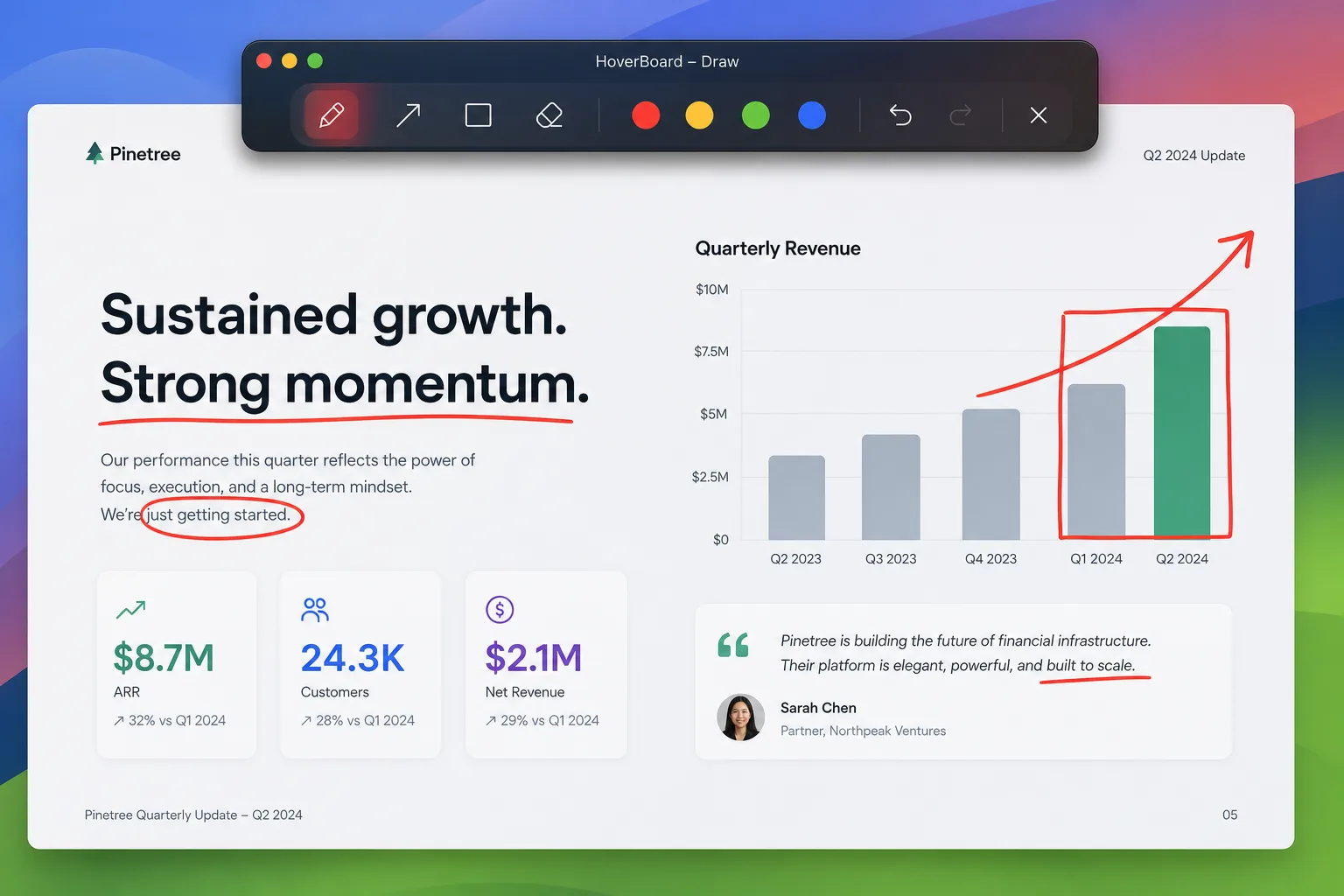
Live interfaces change while you are talking. A page loads, a menu disappears, or a demo moves to the next state before everyone has understood the previous one.
Freeze captures the current screen so you can explain it at your own pace. You can add numbered annotations and then return to the live screen when you are done.
Use a real whiteboard
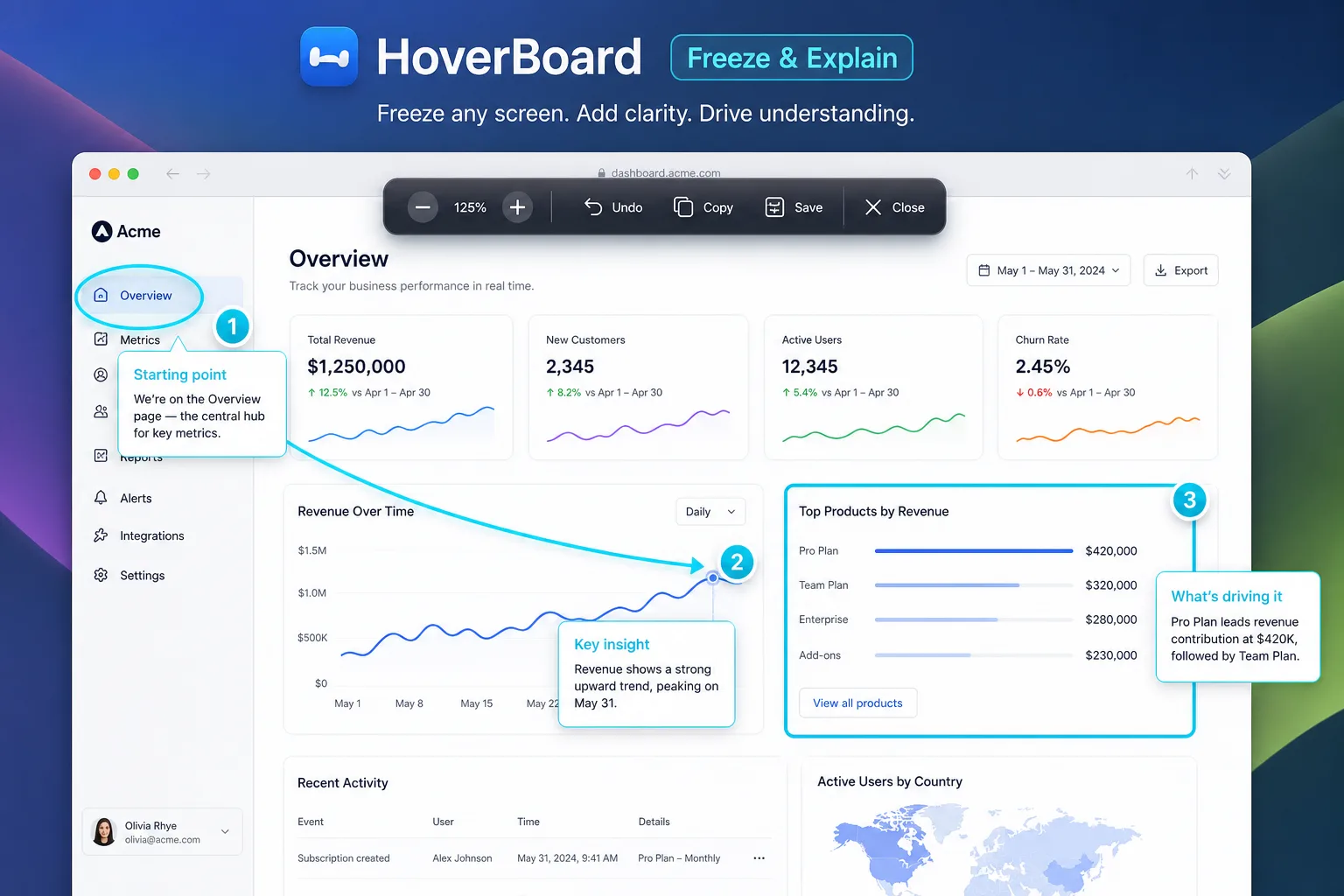
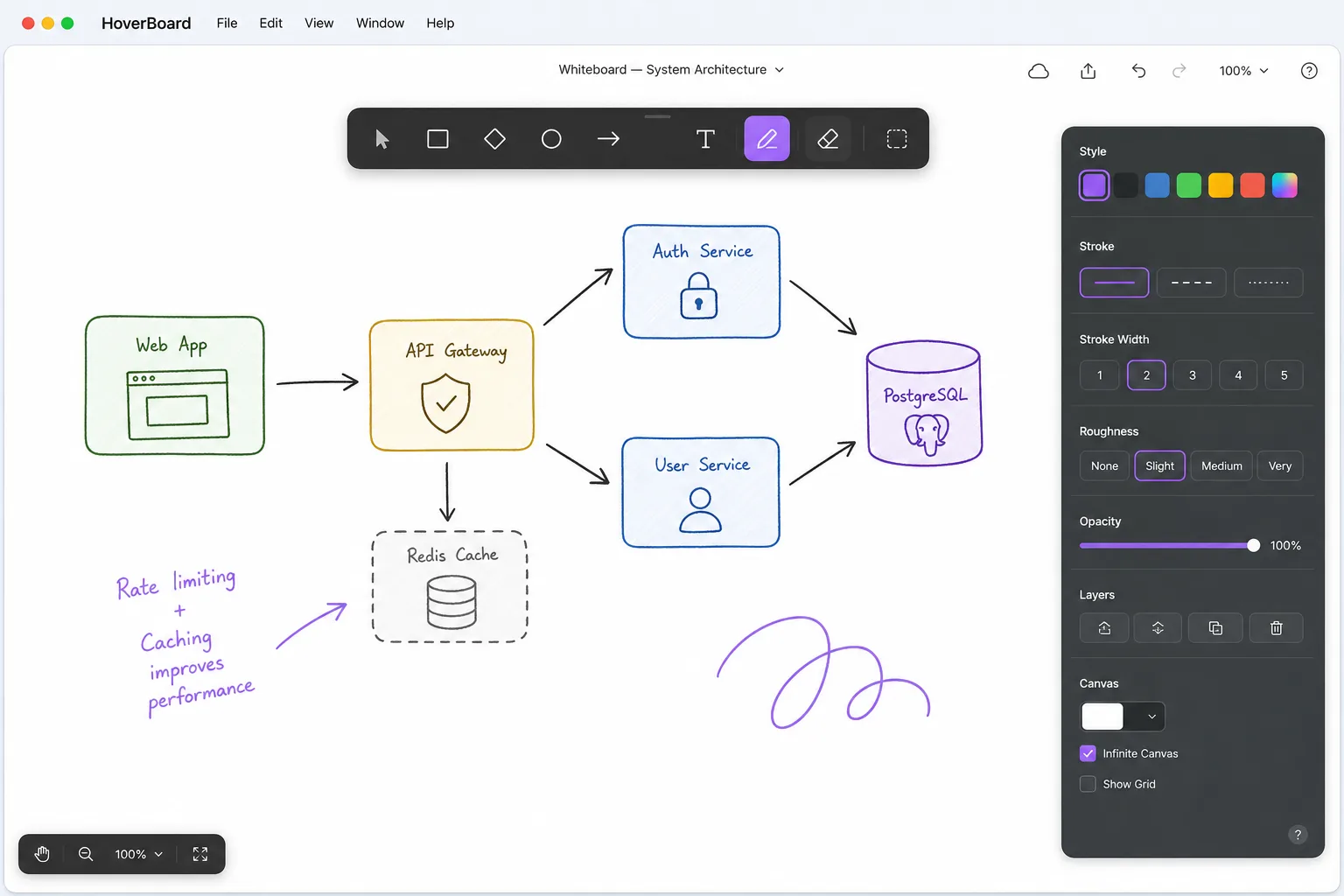
When a presentation turns into a discussion, a slide is often the wrong canvas. HoverBoard gives you an infinite whiteboard for diagrams, mindmaps, text, shapes, and visual explanations.
Whiteboards can be exported to PNG, SVG, or Excalidraw, so the work does not have to disappear when the call ends.
Keep workshops on schedule
Break Timer puts a visible countdown on the screen. Choose a fullscreen or compact layout, customize the message, pause the timer, add minutes, and optionally play a chime when the break ends.
That is a small feature, but it solves a common problem: a five-minute break quietly becoming fifteen minutes.
Make every click visible
Cursor Halo adds a visible halo around the pointer, with customizable colors, sizes, and click effects. It is useful for remote teaching, software demos, and recordings where viewers need to understand exactly where you are interacting.
Keystroke Display serves a similar purpose for keyboard-driven workflows. It makes shortcuts easier to follow when you are teaching code, demonstrating creative software, or recording a tutorial.
Capture the useful parts
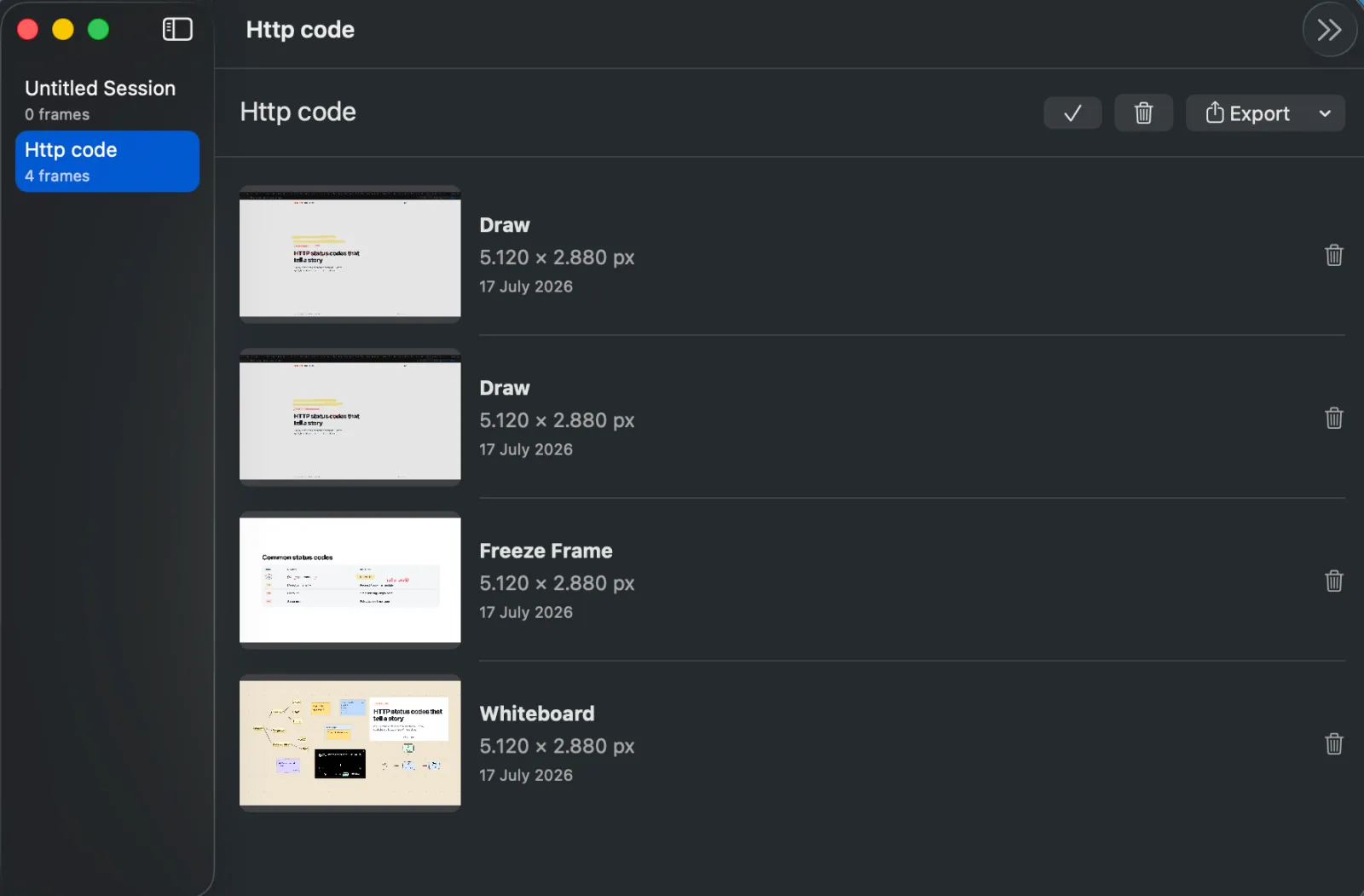
Sessions let you collect frames from Draw, Freeze, and Whiteboard while you present. You can rename and reorder those frames, then export them as image sets or PDFs.
This turns a live explanation into material you can share afterwards — without having to reconstruct everything from memory.
HoverBoard also includes private Markdown presenter notes, local meeting recording, English transcription, and on-device summaries in supported workflows. Your screen contents and local presentation data stay on your Mac unless you choose to export them.
Feature comparison
| Capability | Presentify | HoverBoard |
|---|---|---|
| Draw and annotate over any screen | Yes | Yes |
| Shapes, arrows, text, and highlights | Yes | Yes |
| Cursor highlighting | Yes | Yes |
| Spotlight | Yes | Yes |
| Screen zoom | Yes | Yes |
| Freeze and explain | — | Yes |
| Infinite whiteboard and mindmaps | Basic whiteboard workflow | Yes |
| Break timer overlay | — | Yes |
| Cursor halo and click effects | — | Yes |
| Live keystroke display | — | Yes |
| Sessions and PDF export | — | Yes |
| Private presenter notes | — | Yes |
| Local recording and transcription | — | Yes |
| One-time purchase | $14.99 | $11.19 (was $15.99) |
The table is not meant to dismiss Presentify. Presentify does the focused annotation job well. The point is that HoverBoard is aimed at a wider use case — and during Back to School, Pro Lifetime is $11.19 (was $15.99) versus Presentify’s $14.99 list.
Which one should you choose?
Choose Presentify if you want a simple, focused overlay for drawing, cursor highlighting, spotlight, and zoom. It is a sensible option when you already have separate tools for timers, notes, whiteboards, and recording.
Choose HoverBoard if you want those presentation basics together with the tools needed to run a class, lead a workshop, explain a technical topic, demo software, or create a tutorial.
The comparison becomes especially straightforward at these prices:
Presentify costs $14.99 for focused screen annotation.
HoverBoard Pro Lifetime costs $11.19 (was $15.99) until 30 Sep 2026 and adds a much broader presentation toolkit.
That Back to School price is not buying a different way to draw an arrow. It is buying the surrounding workflow: freeze the moment, explain it, sketch the idea, keep the group on schedule, show every click, and save the useful parts for later.
No subscription, no cloud workspace
Both products follow a one-time purchase model. HoverBoard does not require an account, a cloud workspace, or a recurring subscription. It runs as a native macOS menu bar app and appears over whatever you are already presenting.
HoverBoard supports macOS 14 and later and works over Zoom, Google Meet, Microsoft Teams, Keynote, PowerPoint, browsers, and IDEs.
If you only need annotations, Presentify remains a strong choice. If you want one app that can support the whole presentation — from the first annotation to the final exported session — try HoverBoard.
Same category. A lower Back to School price for HoverBoard. A much broader toolkit for presenting on Mac.