How to Use Meetly — A Complete Guide
On this page
Meetly is a native macOS menu bar app that fires a fullscreen reminder before your meetings start — then gets out of your way. It is not a calendar replacement. It watches the calendars you already use (Google, Outlook, iCloud, Exchange, and anything synced into macOS Calendar) and interrupts you at the right moment.
This guide walks through install, first launch, daily use, keyboard shortcuts, settings, and Pro features. If you have not downloaded it yet, grab it from the Meetly page.
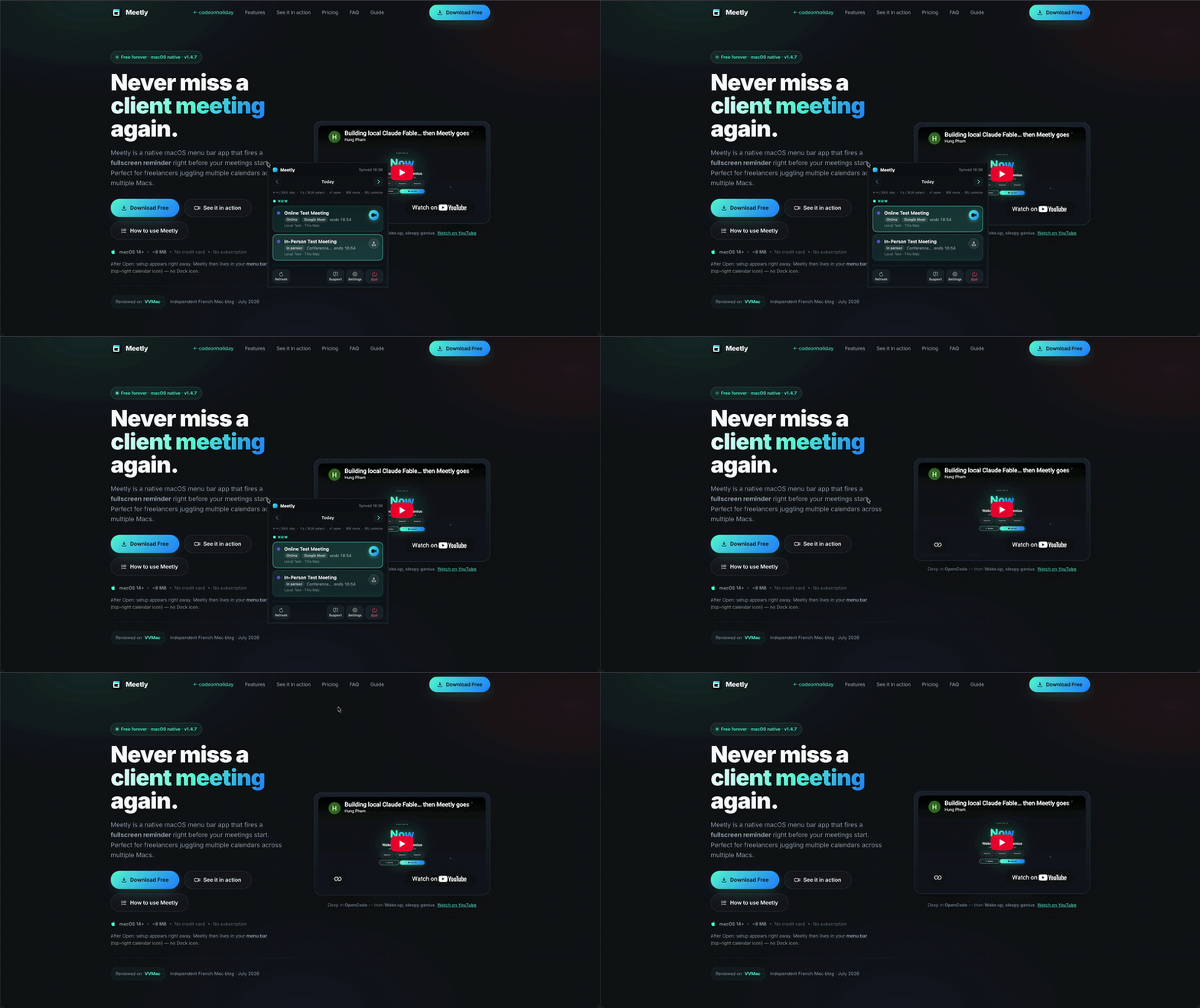
See it in action
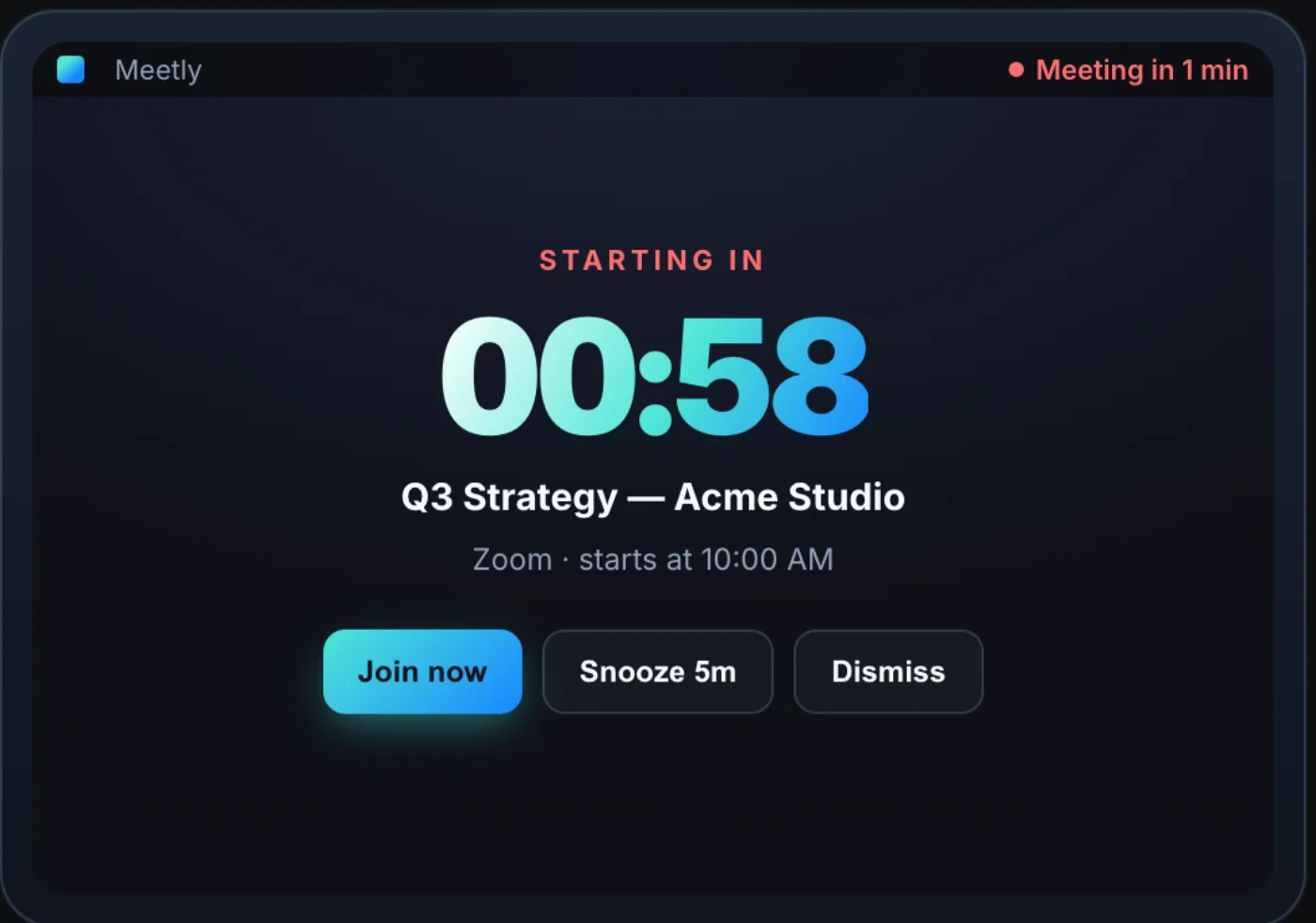
Building something silly in OpenCode — then Meetly goes Wake up, sleepy genius:
What Meetly does (and does not do)
Meetly does:
- Show a fullscreen overlay before a meeting starts
- Surface one-click join links for Zoom, Google Meet, Teams, and similar
- Live in the menu bar with a quick glance at today and tomorrow (up to 30 days on Pro)
- Let you mute specific meetings, snooze, or dismiss from the keyboard
Meetly does not:
- Replace Calendar, Fantastical, or Google Calendar on the web
- Upload your calendar data to our servers — everything stays on your Mac (sync state uses your own iCloud on Pro)
- Charge a monthly subscription — Free is free forever; Pro is a one-time purchase
flowchart LR
  Cal[macOS Calendar] --> Meetly[Meetly menu bar]
  Rem[Apple Reminders Pro] --> Meetly
  Meetly --> Overlay[Fullscreen reminder]
  Meetly --> Panel[Quick Panel Pro]
  Overlay --> Join[One-click join]
Requirements
- macOS 14 (Sonoma) or later
- Calendar accounts already set up in the macOS Calendar app
- About 8 MB of disk space — Meetly is a lightweight native app, not Electron
Install and first launch
- Download Meetly and unzip the archive.
- Drag Meetly.app into Applications (or run it from the folder).
- On first open, macOS may ask you to confirm — choose Open.
- The setup window appears right away (as of v1.4.5). You may briefly see Meetly in the Dock during setup; that is normal.
- When setup finishes, Meetly lives in the menu bar at the top-right of your screen — look for the calendar icon. There is no Dock icon after setup.
Opened Meetly and nothing happened? Meetly is a menu bar app. Click the calendar icon in the menu bar. If you do not see it, check the menu bar overflow (» or Control Center extras).
First-time setup (onboarding)
Onboarding has two steps:
Step 1 — Choose calendars
- Click Request Calendar Access and allow Calendar permission in the system dialog.
- Toggle on the calendars Meetly should watch.
- Free: one calendar
- Pro: unlimited calendars
- Pick the calendar that matters most if you are on Free — usually your work calendar.
Step 2 — Test the reminder
- Click Create Test Reminder — Meetly adds a meeting that starts in 30 seconds.
- Or click Show Fullscreen Test to preview the overlay immediately (after a test meeting exists).
- When you have seen the overlay, click Finish.
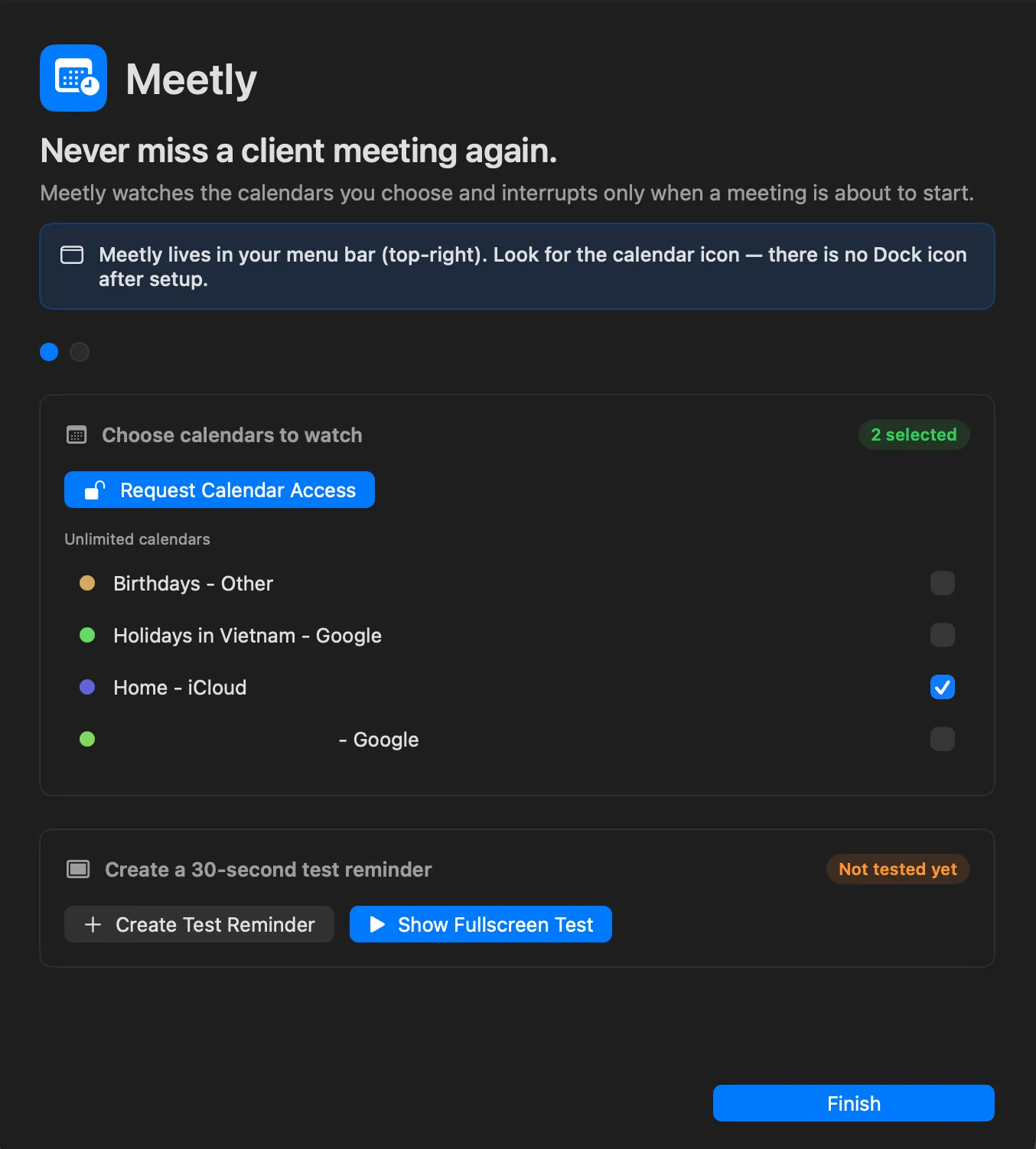
You can reopen onboarding anytime from Settings → Open Onboarding.
Where Meetly lives: the menu bar
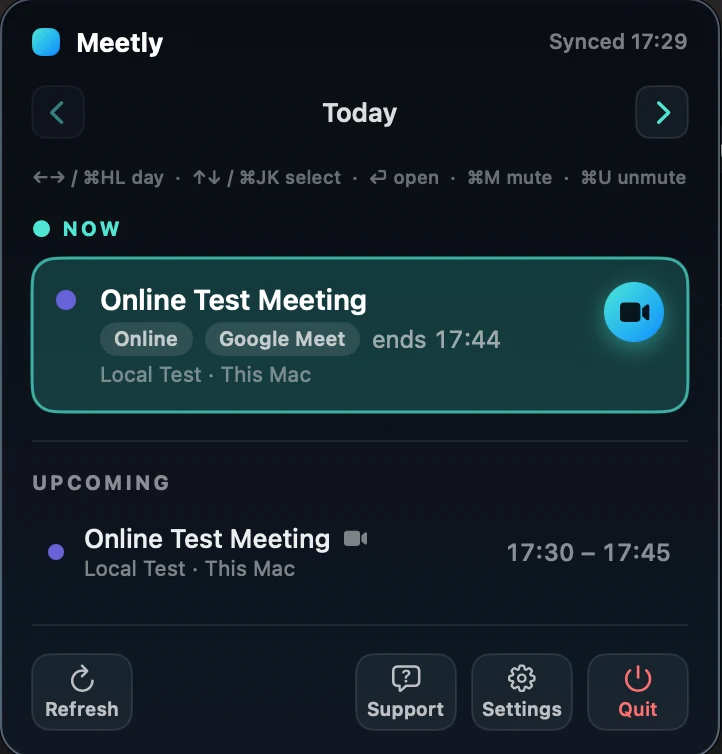
Click the calendar icon to open the menu bar panel. On Today you will see:
| Section | What it shows |
|---|---|
| NOW | Meetings happening right now |
| NEXT | The next meeting today (with countdown — e.g. in 1:12 when more than an hour away) |
| UPCOMING | Later meetings today |
Use the ‹ › arrows to browse today and tomorrow on Free. Pro makes the agenda configurable from 1–30 days and enables navigation beyond tomorrow. Each day shows a flat list of that day’s events.
Footer actions:
- Refresh — reload events from Calendar
- Settings — calendars, alerts, shortcuts, Pro
- Quit — exit Meetly (it will not remind you until you launch it again)
The same keyboard shortcuts as Quick Panel (Pro) work here too — arrows or ⌘ H / J / K / L to navigate, ⌘ M / ⌘ U to mute/unmute.
Tip: Turn on Launch Meetly at login in Settings → General so reminders work after every reboot.
The fullscreen reminder
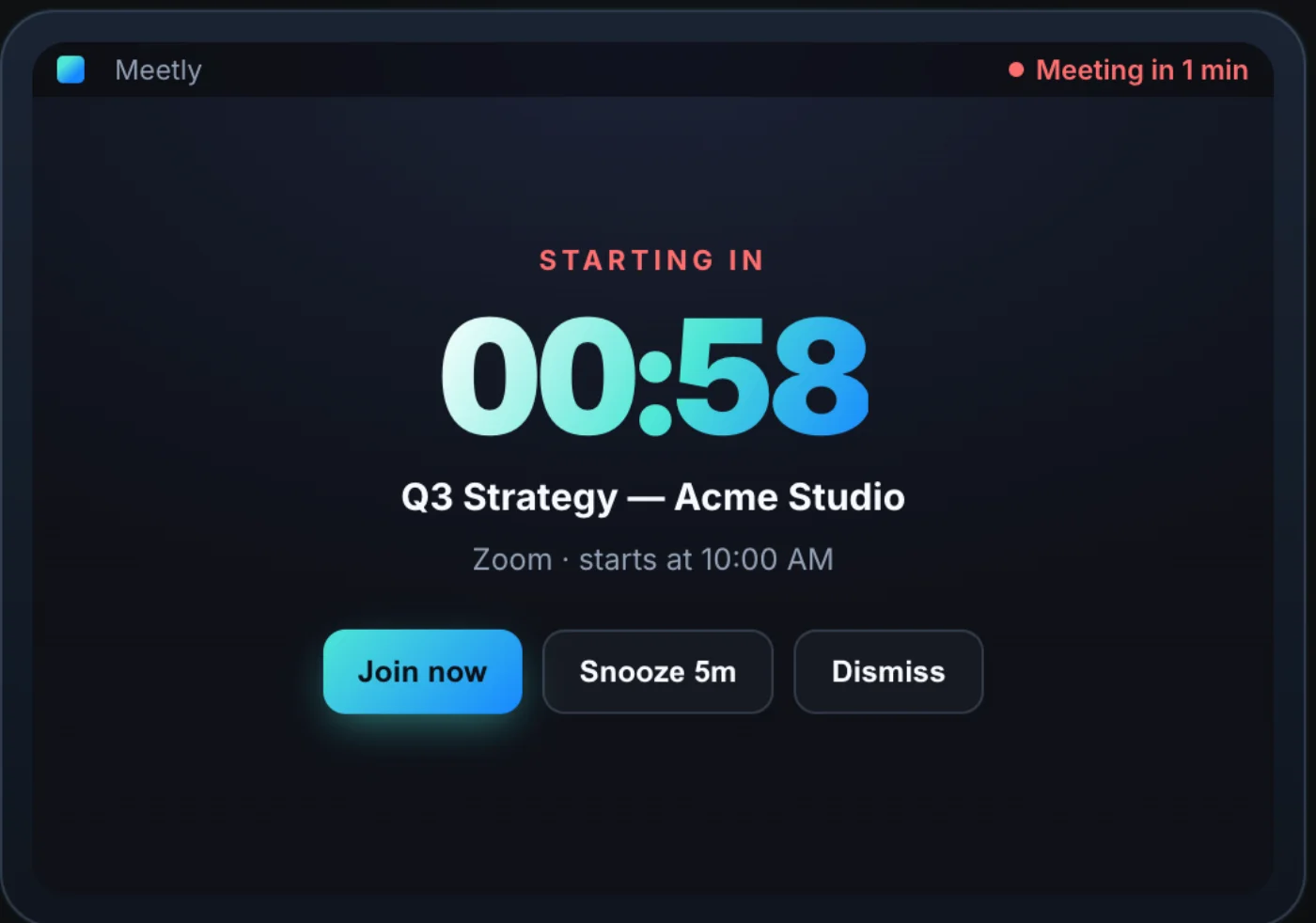
Before a meeting starts (default: 10 seconds ahead, configurable), Meetly covers every connected display with a fullscreen overlay:
- Meeting title and countdown
- Join now if a video link is detected
- Snooze for 1, 3, or 5 minutes
- Dismiss to skip this occurrence
The overlay auto-dismisses after a few minutes (default 3 minutes) if you do not act. Joining from the overlay always dismisses it. Joining early from the menu bar can optionally dismiss it too — see Settings → Alerts.
Keyboard shortcuts on the overlay
| Key | Action |
|---|---|
| ← → or ↑ ↓ | Move focus between Join, Snooze, Dismiss |
| Return | Activate the focused button |
| Esc | Dismiss |
If two meetings overlap, the overlay lists both. Use arrow keys to pick which one to join.
One-click join
If the calendar event has a conferencing URL, Meetly surfaces Join now on that same overlay — no digging through Calendar notes. Zoom, Google Meet, Teams, and similar links are detected automatically.
Quick Panel — your schedule from anywhere
On Pro, press Control + Option + M (default) from any app to summon the Quick Panel at your cursor. It shows the same meeting list as the menu bar, without clicking the icon.
| Key | Action |
|---|---|
| ← → or ⌘ H / ⌘ L | Change day |
| ↑ ↓ or ⌘ K / ⌘ J | Select a meeting |
| Return | Join / copy location / open link |
| ⌘ M | Mute selected meeting (skip fullscreen reminder) |
| ⌘ U | Unmute selected meeting |
| Esc | Close panel |
Vim-style: ⌘ H previous day, ⌘ L next day, ⌘ K up, ⌘ J down — same as the arrow keys while the panel is open.
Change the shortcut in Settings → General → Quick Panel Shortcut. You can record any key combo the recorder accepts.
Mute and unmute meetings
Sometimes you want to skip the fullscreen alert for one meeting — standup you are intentionally skipping, an optional sync, a duplicate invite.
- Open the menu bar panel or Quick Panel (Pro).
- Select the meeting.
- Press ⌘ M to mute.
Muted meetings show a Muted tag. Press ⌘ U to turn reminders back on.
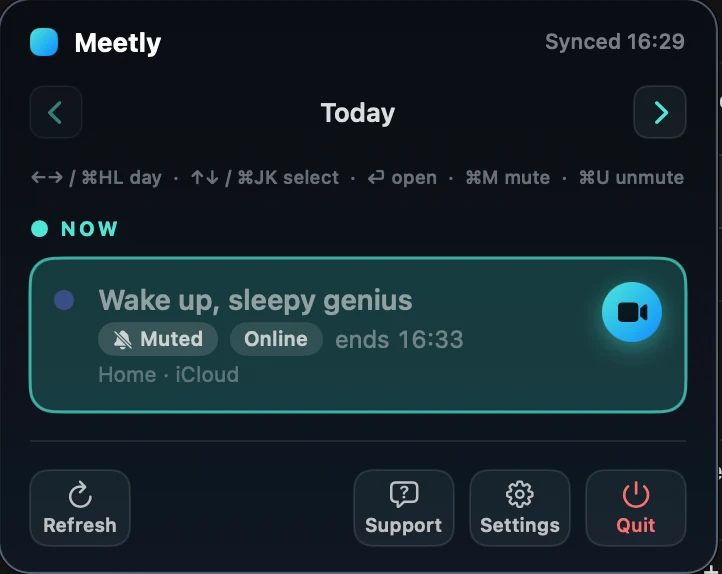
Mute is separate from dismiss or snooze: it means “do not fire the fullscreen reminder for this occurrence.” On Pro, mute state syncs across your Macs via iCloud.
Settings overview
Open Settings from the menu bar panel (gear icon). There are four tabs.
General
- Meetly Pro — license and upgrade
- Launch at login
- Quick Panel shortcut (Pro) — enable/disable and customize
- Health Check — permissions, monitored calendars, next reminder, sync status
- Software Update — Sparkle auto-update
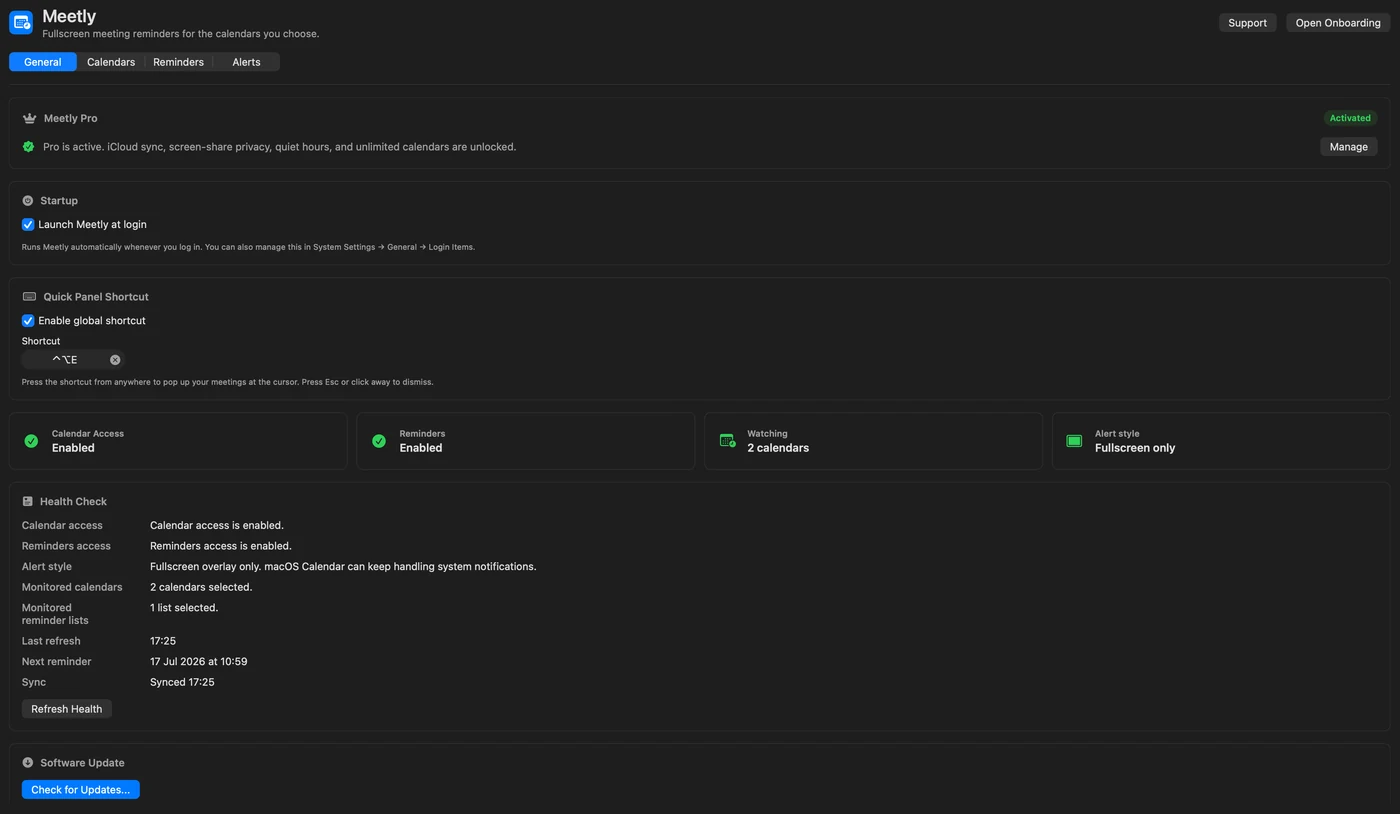
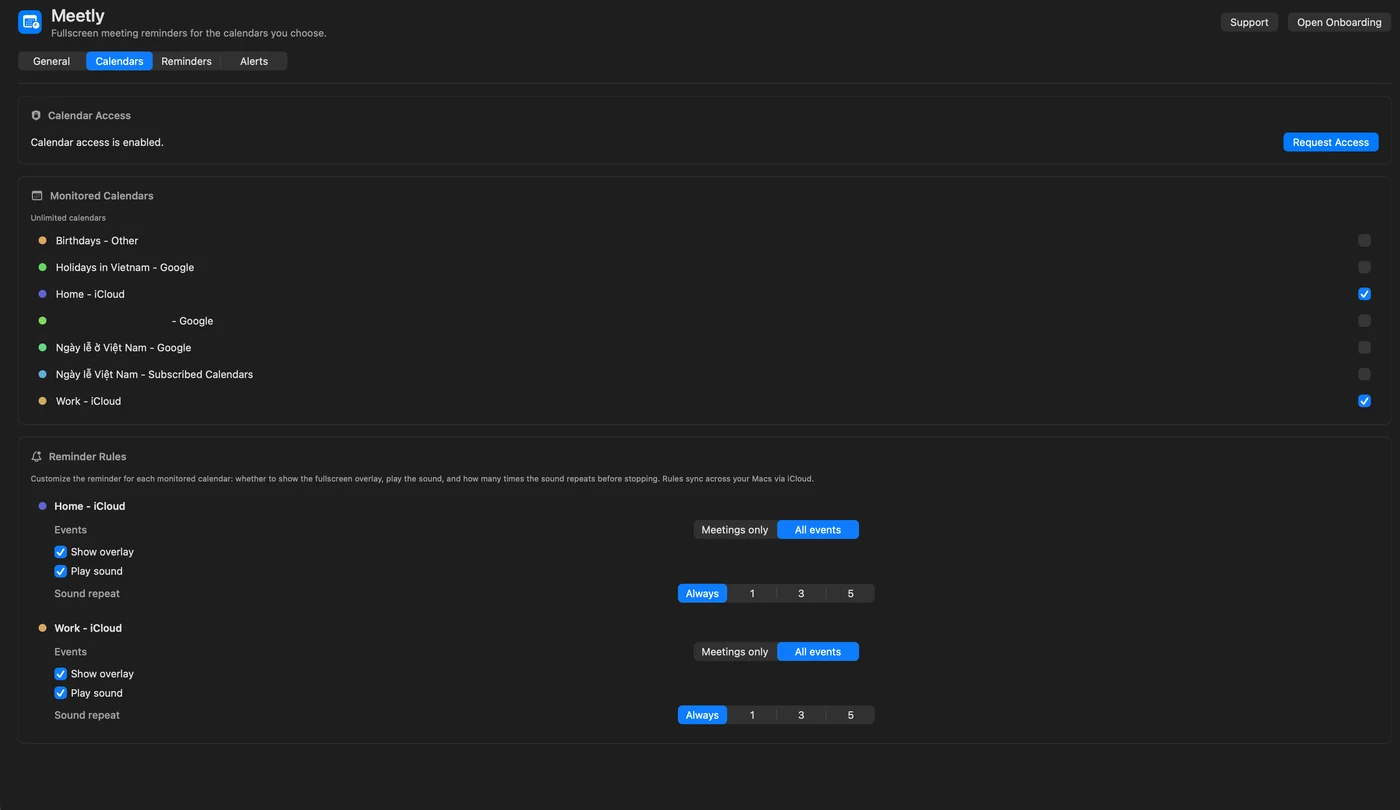
Calendars
- Request Calendar Access if permission was denied
- Monitored Calendars — toggle which calendars to watch
- Reminder Rules — per calendar:
- Meetings only vs all events (Pro)
- Show overlay on/off
- Play sound on/off
- Sound repeat count (Pro)
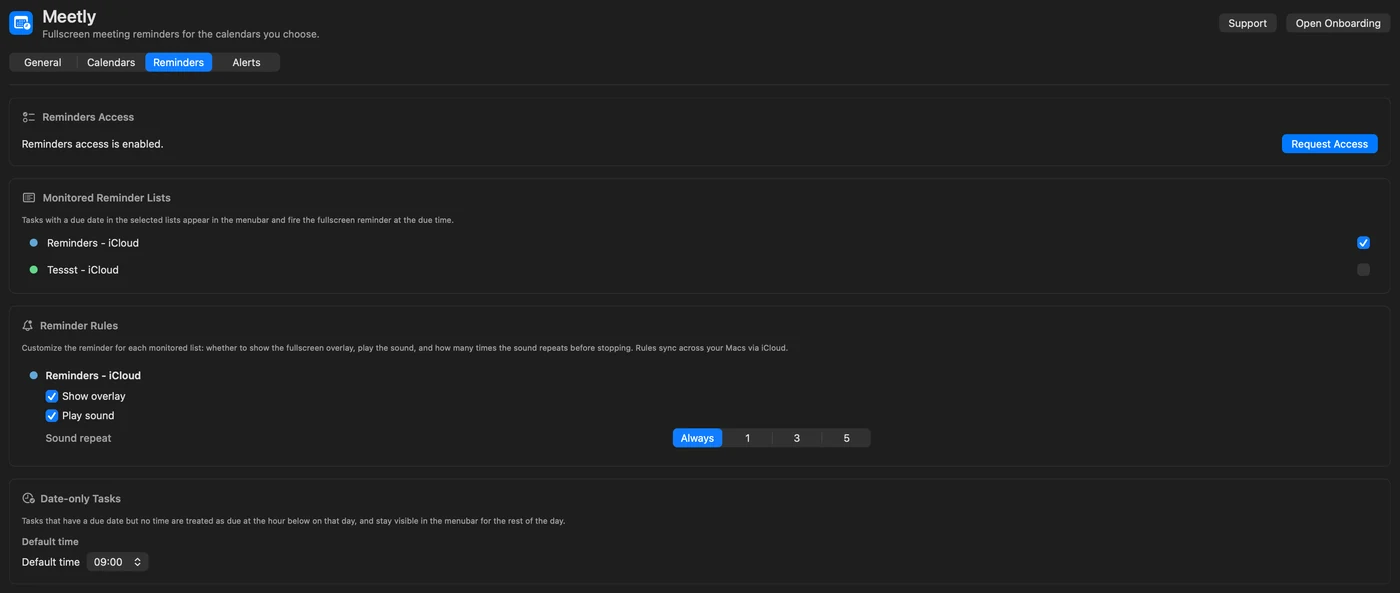
Reminders (Pro)
Watch Apple Reminders lists with due dates:
- Select which lists to monitor
- Tasks with a due time fire like meetings
- Tasks with a date but no time default to 9:00 AM (configurable)
- Per-list overlay and sound rules
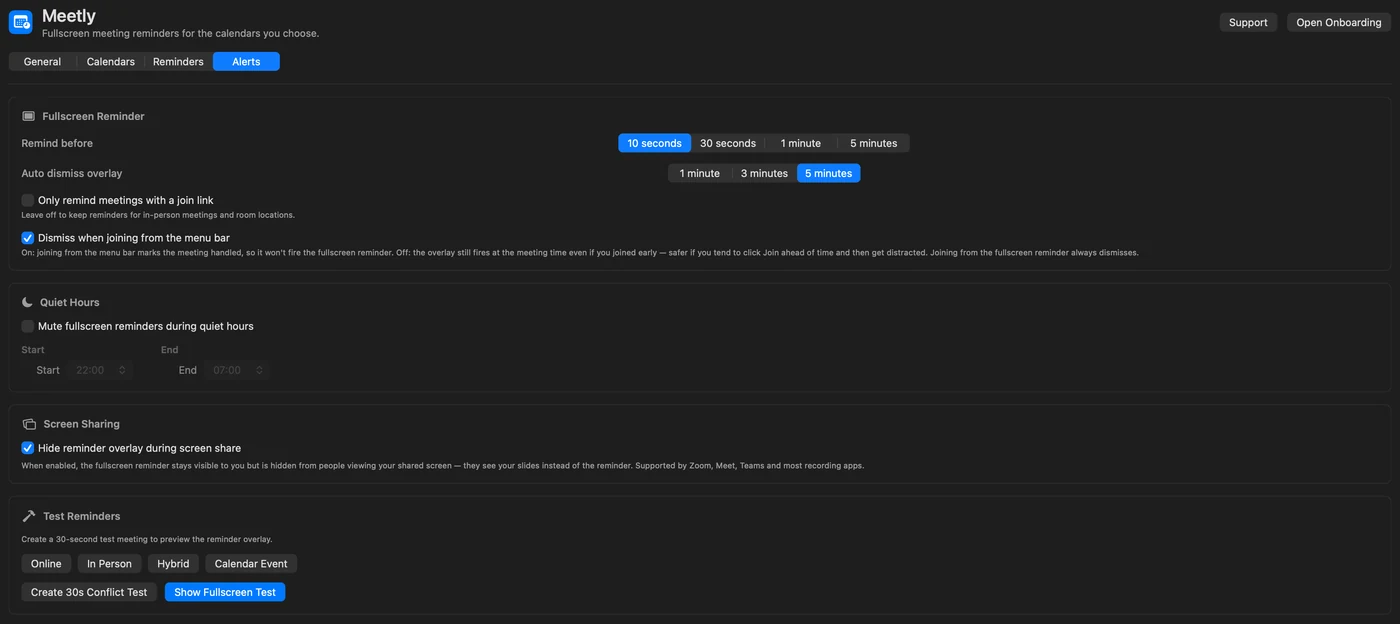
Alerts
| Setting | What it does |
|---|---|
| Remind before | 10s, 30s, 1 min, 2 min, 3 min, or 5 min |
| Auto dismiss overlay | 1, 3, or 5 minutes |
| Only remind meetings with a join link (Pro) | Skip in-person / room-only events |
| Dismiss when joining from menu bar | On = early join skips overlay; Off = safer if you join early then get distracted |
| Quiet hours (Pro) | Mute fullscreen reminders overnight |
| Hide during screen share (Pro) | Overlay visible to you, hidden from Zoom/Meet/Teams viewers |
| Test reminders | Create 30s test meetings or show overlay instantly |
Meetly Pro
Free covers one calendar, fullscreen reminders, a today-and-tomorrow agenda, one-click join, and mute shortcuts — enough for many people.
Pro (one-time purchase, no subscription) adds:
- Quick Panel with its global shortcut, pinning, and dragging
- Share free time and post-meeting action item capture
- Unlimited calendars
- Configurable 1–30 day agenda and navigation beyond tomorrow
- Apple Reminders integration
- Advanced per-calendar and per-list reminder rules
- iCloud sync for dismiss, join, snooze, and mute across Macs
- Quiet hours
- Hide overlay during screen sharing
- Sound repeat limits per calendar
Enter or buy a license from Settings → Meetly Pro or the upgrade row in the menu bar.
Multi-monitor setups
Meetly creates one overlay window per display. As of v1.4.6, the fullscreen reminder covers all connected monitors correctly — not just the main screen.
Privacy and data
- Meetly has no backend server for your calendar data.
- Events are read from macOS Calendar / Reminders on your machine.
- Pro sync stores reminder state (dismissed, snoozed, muted) in your iCloud — not on codeonholiday servers.
- Nothing is sold or shared.
Troubleshooting
Meetly is not reminding me
- Settings → Health Check — is Calendar access granted?
- Is at least one calendar selected in Calendars?
- Is the meeting on a monitored calendar?
- Is the meeting muted (Muted tag in the list)?
- Are quiet hours enabled (Pro)?
- Is Only remind meetings with a join link on (Pro), but the event has no URL?
- Did you dismiss or snooze this occurrence already?
Calendar permission denied
Go to System Settings → Privacy & Security → Calendars and enable Meetly. Then Settings → Calendars → Request Access.
Overlay only on one screen / half screen
Update to v1.4.6 or later. Older builds had a multi-monitor sizing bug.
Quick Panel shortcut does nothing
Confirm Meetly Pro is active, then check Settings → General → Enable global shortcut is on. Another app may have claimed the same combo — record a different shortcut.
Double reminders on two Macs
Upgrade to Pro and sign into iCloud on both machines. Dismiss on one Mac should sync to the other.
Recommended workflow
- Install and finish onboarding with your main work calendar.
- Enable launch at login.
- Run a test reminder so you know what the overlay feels like.
- On Pro, learn ⌃⌥ M for Quick Panel; use ⌘ M to mute optional meetings on either plan.
- Upgrade to Pro if you use multiple calendars, Reminders, or more than one Mac.
Get help
- Meetly product page — download, FAQ, pricing
- Settings → Support — opens Telegram support
- Why I built Meetly — the story behind the app
Meetly exists so you can work deeply and still show up on time. Set it up once, trust the interrupt, and stop watching the clock.