Best Annotation Tool for macOS: HoverBoard vs Presentify and More
On this page
If you teach online, present software, run workshops, or record tutorials, the best annotation tool for macOS should do more than draw a quick arrow. It should help people follow your cursor, understand a changing interface, pause a complicated moment, and keep the explanation moving while you share your screen.
This guide compares HoverBoard, Presentify, ScreenBrush, and the annotation tools built into Zoom. The short version is simple: Presentify and ScreenBrush are good focused overlays, and Zoom is convenient when you only need to annotate inside a call. HoverBoard is the strongest all-round screen annotation app for Mac because it adds Freeze, Spotlight, free Screenshot and Screen Record, Cursor Halo, Keystroke Display, Whiteboard, Notes, Sessions, and local meeting recording around the core drawing workflow.
What makes the best annotation tool for Mac?
Before comparing apps, it helps to separate four common needs:
- Draw on screen: arrows, highlights, shapes, text, and freehand marks over Keynote, PowerPoint, a browser, an IDE, or a video call
- Direct attention: spotlight an area, make the cursor visible, or show clicks and keystrokes
- Explain a moment: freeze a live screen, open a whiteboard, or keep a private presenter note visible only to you
- Screenshot and screen record: capture stills or MP4 while presenting — both free forever in HoverBoard 1.4
Many Mac annotation apps solve the first need. The important difference is what happens when drawing is not enough.
HoverBoard: best all-in-one annotation tool for macOS
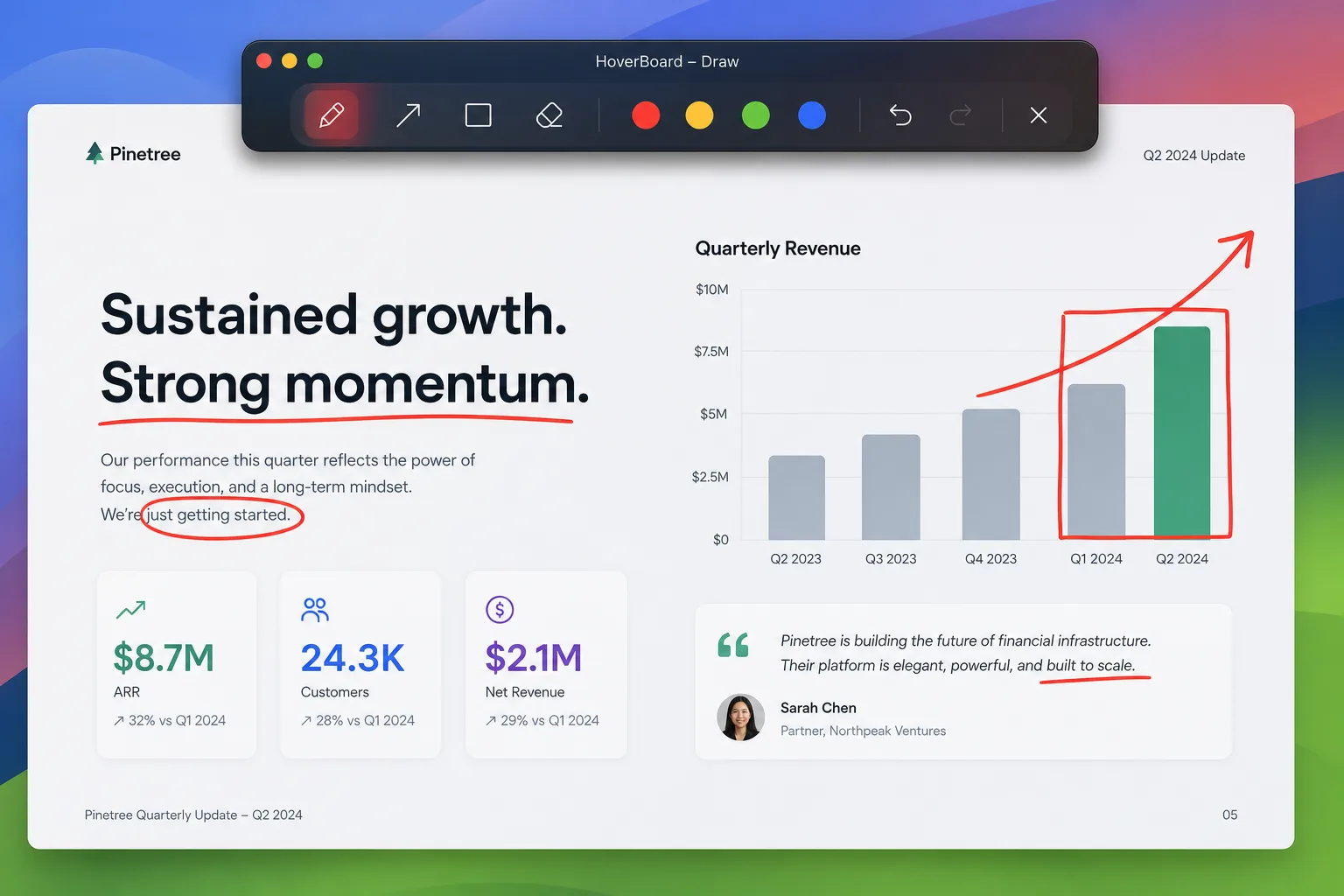
HoverBoard is a native macOS menu bar app for presenting, teaching, screen sharing, and software demos. Press a hotkey and draw over whatever is already on your screen. You can use a pen, highlighter, arrows, rectangles, text, laser pointer, and configurable colors and stroke widths.
Drawings can auto-fade or stay visible until you dismiss them. That makes HoverBoard useful for both quick emphasis during a live explanation and step-by-step walkthroughs where marks need to remain on screen.
Why HoverBoard stands out
- Draw and annotate over any screen or shared application
- Spotlight the area around your cursor without blocking clicks
- Add Cursor Halo and click effects so viewers can follow every interaction
- Show live keystrokes during coding and software tutorials
- Freeze a changing screen and annotate the captured frame
- Open an infinite Whiteboard for diagrams, mindmaps, sticky notes, and checklists
- Keep private Markdown presenter notes beside the presentation
- Capture Draw, Freeze, and Whiteboard frames into Sessions
- Export annotated frames, PNG sets, PDFs, SVG, and Excalidraw files where supported
- Screenshot a region or full display, then copy, save, or mark up (free forever)
- Screen record with mic/system audio, trim, and speed export (free forever)
- Record meetings locally, create English transcripts, and generate on-device summaries on supported Macs (Pro)
- Use global hotkeys instead of switching between apps
- No account, cloud workspace, or telemetry on screen contents
The difference is workflow. HoverBoard is not only a tool to mark the screen; it is a set of presentation tools that stays available while you teach or explain.
Presentify: best focused screen annotation app for Mac
Presentify is a focused Mac presentation overlay for drawing, cursor highlighting, spotlight, and zoom. It is a good choice when you want a lightweight way to annotate slides, code, videos, PDFs, or any other visible screen.
Presentify keeps the product scope clear. It works over other applications and gives presenters the essential visual tools without asking them to move their audience to another whiteboard or workspace. For a user who already has separate apps for notes, timers, recording, and exports, that simplicity can be an advantage.
Where HoverBoard has an edge over Presentify
HoverBoard covers the same core annotation moments, then adds the tools around them: Freeze & Explain, a more complete Whiteboard, Cursor Halo, Keystroke Display, private Notes, Sessions, Break Timer, and local recording workflows.
That makes HoverBoard a useful Presentify alternative for teachers, trainers, developers, and creators who want to keep the entire explanation in one menu bar app. Presentify remains the better fit if you only want a small, dedicated overlay.
ScreenBrush: a simple way to draw over the screen
ScreenBrush represents the simpler end of the Mac annotation category: activate the tool, draw over the current screen, and make a visual point while presenting or screen sharing.
This kind of utility is valuable when the requirement is narrow. You may not need a whiteboard, recording, or presenter notes for a five-minute demo. A compact drawing overlay can be faster to learn and easier to keep out of the way.
Where HoverBoard has an edge over ScreenBrush
HoverBoard is designed for the next question that usually follows a mark on screen: “How do I explain this clearly and keep the useful result?” Freeze lets you stop a live interface from changing. Whiteboard gives you a separate canvas. Notes keeps private context beside the call. Sessions lets you save the important frames instead of losing the explanation when the meeting ends.
If you only want a digital pen, ScreenBrush may be enough. If you want a Mac annotation tool for teaching, presenting, and screen recording, HoverBoard provides a broader workflow.
Zoom annotation: convenient inside a meeting, limited outside it
Zoom includes annotation tools while screen sharing, including drawing, text, and shapes. That is convenient when you are already in a Zoom call and only need to mark the shared screen for participants.
The limitation is that Zoom annotation is tied to the meeting and its sharing workflow. It is not a general presentation overlay for Keynote, PowerPoint, browsers, IDEs, recordings, or Google Meet. You also may not want to expose every presenter tool to meeting participants.
HoverBoard works over the applications you already use and is independent of the video-call provider. That means the same hotkeys and visual language work in Zoom, Google Meet, Microsoft Teams, a classroom, a local recording, or an in-person presentation.
HoverBoard vs Presentify vs ScreenBrush vs Zoom
| Capability | HoverBoard | Presentify | ScreenBrush | Zoom annotation |
|---|---|---|---|---|
| Draw over any Mac screen | Yes | Yes | Yes | During Zoom sharing |
| Pen, highlighter, arrows, shapes, text | Yes | Yes | Core drawing tools | Yes |
| Auto-fade or persistent drawings | Yes | Yes | Varies | Varies |
| Cursor spotlight | Yes | Yes | Varies | No general desktop mode |
| Cursor halo and click effects | Yes | Limited / focused | Varies | No |
| Live keystroke display | Yes | No | No | No |
| Freeze a live screen | Yes | Limited / not core | No | No |
| Infinite whiteboard and mindmaps | Yes | Basic whiteboard workflow | No | Meeting whiteboard |
| Private presenter notes | Yes | No | No | No |
| Sessions and export workflow | Yes | No | No | Meeting-dependent |
| Screenshot (region / full) | Yes (free) | No | No | No |
| Screen record + trim / speed | Yes (free) | No | No | No |
| Local meeting recording and transcription | Yes (Pro) | No | No | Separate Zoom workflow |
| Works across Zoom, Meet, Teams, and local apps | Yes | Yes | Yes | Zoom only |
| One-time purchase option | Yes | Yes | Check current plan | Part of Zoom plan |
Features and pricing can change, so check each product’s current page before buying. The key product difference is scope: Presentify and ScreenBrush focus on marking the screen, Zoom focuses on annotation inside a Zoom meeting, and HoverBoard connects annotation with explanation, teaching, capture, and follow-up.
Which Mac annotation tool should you choose?
Choose Presentify if you want a focused screen overlay for drawing, spotlight, cursor highlighting, and zoom.
Choose ScreenBrush if your primary need is a simple digital pen over the current Mac screen.
Choose Zoom annotation if you only need to mark content while sharing inside a Zoom call and do not need a system-wide presentation tool.
Choose HoverBoard if you want the best all-around annotation tool for macOS: draw on any screen, guide attention with Spotlight and Cursor Halo, freeze a difficult moment, switch to a Whiteboard, show keystrokes, keep private Notes, save Sessions, and record or export the useful parts afterwards.
The best annotation app is more than a digital pen
The best screen annotation tool depends on how much of the presentation workflow you want to cover. A small overlay is perfect for a quick arrow. A meeting platform is convenient for one specific call. But teaching and presenting usually involve more than marking pixels.
You need to slow down a changing demo, sketch a diagram, show a shortcut, keep a private prompt, capture the explanation, and share the result afterwards. HoverBoard brings those steps into one native macOS menu bar app, with no subscription and no cloud workspace required.
Spotlight, Break Timer, Screenshot, and Screen Record are free forever. Draw, Freeze, Whiteboard, Cursor Halo, Keystroke Display, Sessions, and advanced export features are available through the Pro upgrade, which is a one-time purchase. HoverBoard supports macOS 14 and later.
Related: Best free screenshot tool for Mac · Best free screen recorder for Mac
Try HoverBoard for macOS if you want a screen annotation app that can stay with you from the first arrow to the final exported explanation.