Best Screen Annotation for Zoom and Google Meet on Mac — HoverBoard
On this page
The best screen annotation for Zoom or Google Meet on Mac is the tool that lets you mark the shared screen without breaking the call. Built-in Zoom annotation helps inside Zoom’s own share surface. Dedicated Mac overlays help when you share any window — IDE, browser, Figma, Keynote — and still need arrows, spotlight, freeze, or a whiteboard.
This guide compares HoverBoard, Presentify, Zoom’s built-in annotation, and ScreenBrush, with a bias toward teachers, workshop hosts, and product demos.
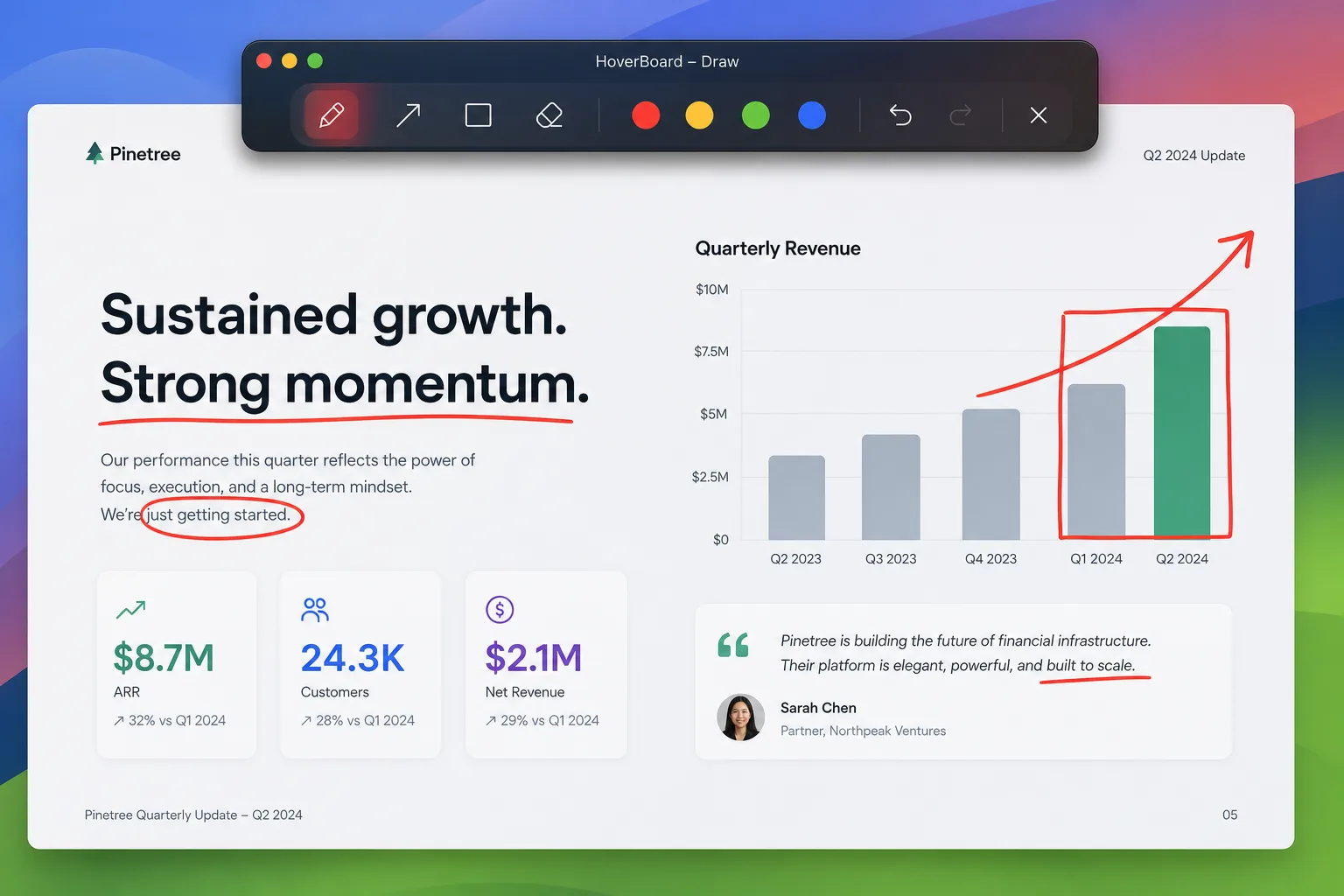
What you need on a live call
- Draw over the app you are already sharing
- Make the cursor obvious for remote viewers
- Pause a moving UI long enough to explain it
- Jump to a whiteboard when slides fail
- Prefer hotkeys over hunting toolbars mid-sentence
HoverBoard: best all-round annotation toolkit for Mac calls
HoverBoard is a native menu bar overlay for presenting and teaching. Hotkeys open Draw, Spotlight, Freeze, Whiteboard, Cursor Halo, Keystroke Display, Notes, Break Timer, and Sessions. Screenshot and Screen Record are free forever — capture stills or MP4 without leaving the app. It works over Zoom, Google Meet, Microsoft Teams, and desktop apps because it annotates the Mac screen itself — not only a vendor toolbar.
Highlights for Zoom / Meet
- Draw with pen, highlighter, arrows, shapes, text
- Freeze & Explain when demos move too fast
- Cursor Halo and Spotlight for remote visibility
- Whiteboard with export options when discussion takes over
- Screenshot and Screen Record free forever; Pro Lifetime $11.19 (was $15.99) one-time until 30 Sep 2026
Guides: complete HoverBoard guide, free screenshot, free screen recorder, vs Presentify, best annotation tool for macOS.
Presentify: best focused lightweight overlay
Presentify stays narrow: draw, highlight, spotlight, zoom. Choose it when you want a simple Presentify-class tool and already own separate whiteboard, timer, and recording apps. HoverBoard costs about a dollar more and packs a wider teaching workflow.
Zoom built-in annotation: best when you never leave Zoom
Zoom’s annotate tools are convenient when everyone is already in Zoom and you share through Zoom’s controls. Limits appear when you need richer freeze/whiteboard workflows, or when Google Meet / Teams is the meeting home for the day. A Mac overlay travels with you across vendors.
ScreenBrush: best minimal paint-over-screen utility
ScreenBrush-style tools are fine for quick marks. They usually lack HoverBoard’s Freeze, Sessions, keystroke HUD, and teaching stack. Fine for occasional arrows; thin for weekly workshops.
Comparison
| Tool | Works over any Mac app | Freeze / whiteboard depth | Tied to one meeting vendor |
|---|---|---|---|
| HoverBoard | Yes | Strong | No |
| Presentify | Yes | Focused overlay | No |
| Zoom annotate | Inside Zoom share | Basic | Yes |
| ScreenBrush | Yes | Minimal | No |
Recommendation
For Zoom, Meet, or Teams on Mac where teaching quality matters, start with HoverBoard. Keep Zoom’s built-in tools as a backup inside Zoom-only meetings. Choose Presentify if you insist on the smallest possible overlay.
Download HoverBoard and try Spotlight free before you buy Pro for Draw and Freeze.