How to Use Meetly Calendars and Mute — Control Which Meetings Interrupt You
On this page
Meetly only works well when it watches the right calendars and stays quiet for the meetings you intentionally skip. This guide covers Calendar access, monitored calendars, per-calendar reminder rules, and mute / unmute.
Download Meetly from the product page, or read the complete guide for install and first launch.
Grant Calendar access
On first launch, Meetly asks for Calendar permission. If you denied it:
- Open Settings → Calendars.
- Click Request Calendar Access, or enable Meetly under System Settings → Privacy & Security → Calendars.
- Run Settings → General → Health Check to confirm permission and the next reminder.
Meetly reads events that already appear in macOS Calendar — Google, Outlook, iCloud, Exchange, and other accounts you synced there. It does not replace your calendar app.
Choose monitored calendars
Free monitors one calendar. Pro unlocks unlimited calendars.
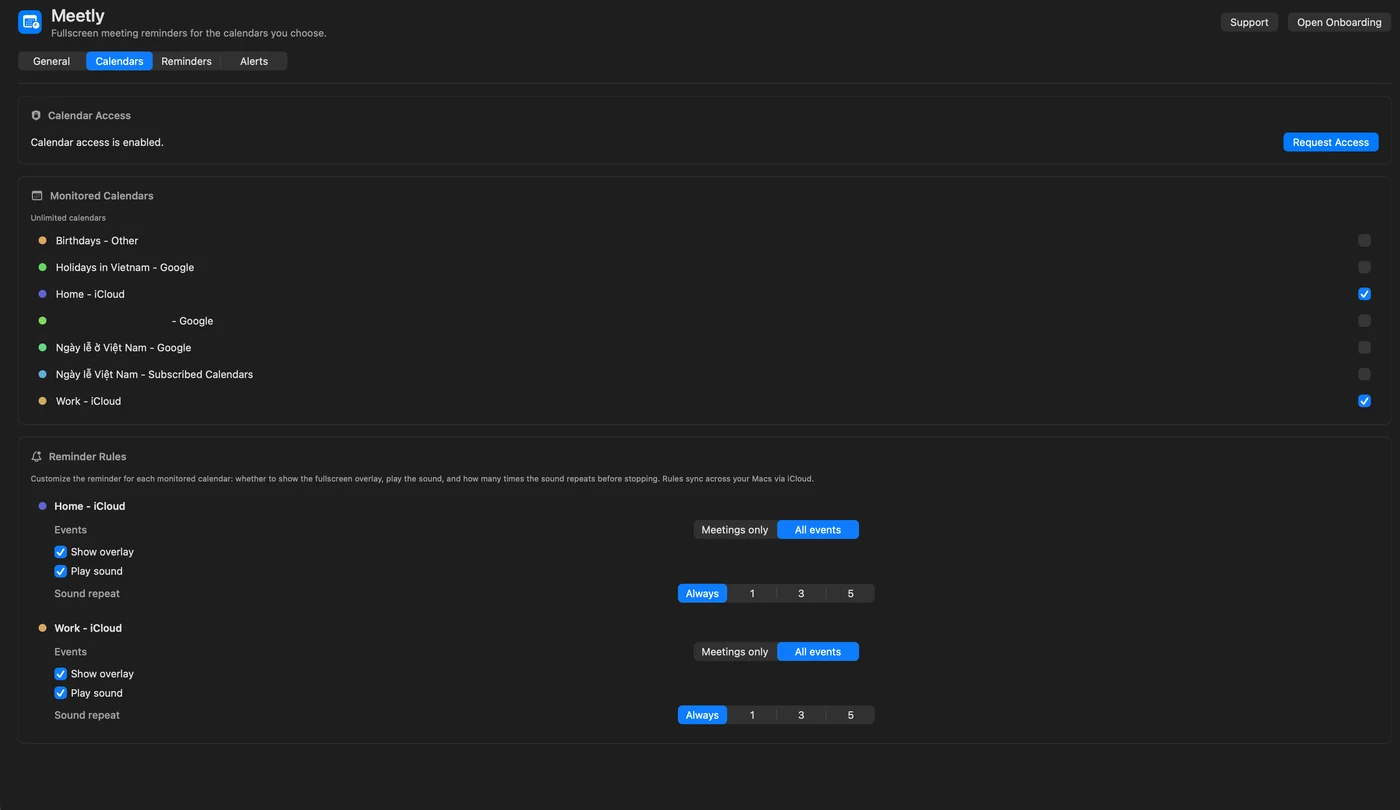
- Open Settings → Calendars.
- Toggle Monitored Calendars for each source you care about.
- Leave personal noise calendars off if you only want work alerts.
Pro reminder rules per calendar
Each monitored calendar has basic controls, with advanced rules on Pro:
- Meetings only vs all events (Pro)
- Show overlay on / off
- Play sound on / off
- Sound repeat count (Pro)
Use this when one calendar is “must interrupt” (customer calls) and another is “glance only” (optional social). Pair rules with Alert settings such as remind-before timing and quiet hours.
Mute a single meeting
Mute is for one occurrence you do not want a fullscreen reminder for — an optional sync, a duplicate invite, or a standup you are skipping.
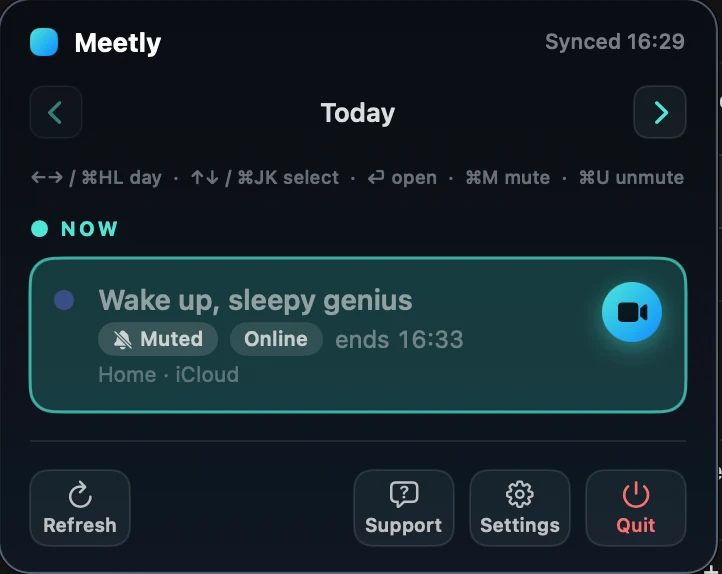
- Open the menu bar panel or Quick Panel (Pro, ⌃⌥M).
- Select the meeting.
- Press ⌘ M.
A Muted tag appears on the event. Press ⌘ U to unmute.
| Action | Meaning |
|---|---|
| Mute (⌘ M) | Skip the fullscreen reminder for this occurrence |
| Snooze | Delay the current overlay |
| Dismiss | Clear the current overlay |
Mute is not the same as deleting the event from Calendar. The meeting still shows in the list; Meetly simply will not interrupt you for it.
On Pro, mute state syncs across your Macs through your iCloud — not a codeonholiday server.
Only remind meetings with a join link
On Pro, enable Only remind meetings with a join link in Settings → Alerts if in-person or room-only events should stay silent. That filter works together with mute and calendar rules.
Troubleshooting empty or wrong reminders
- Health Check — Calendar access granted?
- Is the event’s calendar monitored?
- Is the meeting muted?
- Are quiet hours (Pro) hiding overlays overnight?
- Free plan — is a second calendar silently unmonitored?