How to Use Meetly Quick Panel — Your Schedule From Any App
On this page
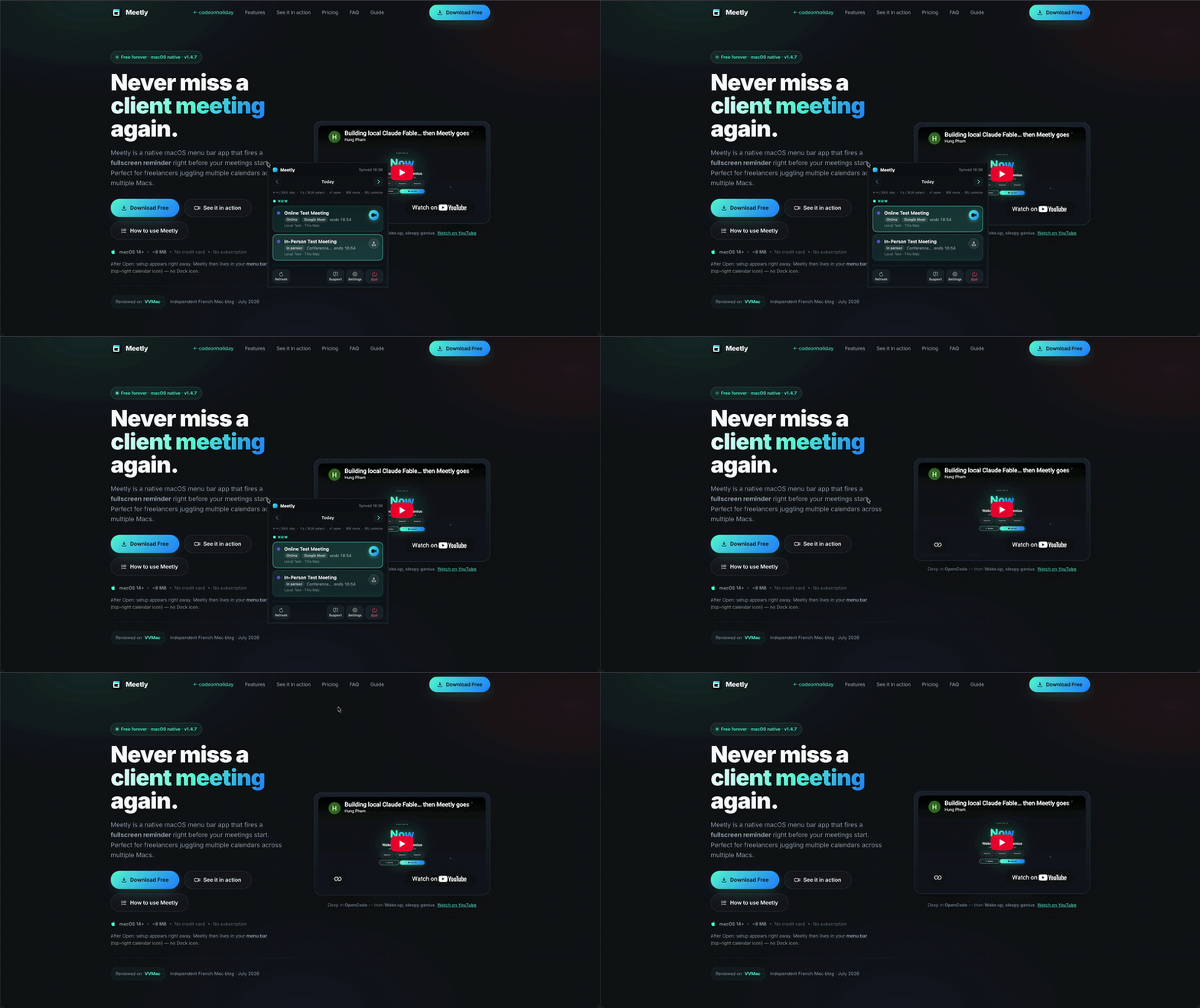
Meetly’s Quick Panel is a Pro feature and the fastest way to see today’s meetings without hunting for the menu bar icon. Press a global shortcut from any app and the same schedule list appears at your cursor — ready to join, mute, or browse another day.
If you are new to Meetly, start with the complete Meetly guide or download from the Meetly page.
Open the Quick Panel
The default shortcut is Control + Option + M (⌃⌥M).
- Grant Accessibility / Input Monitoring if macOS asks on first use of the global shortcut.
- Press ⌃⌥M from Safari, your IDE, Slack, or anywhere else.
- The panel opens at the pointer with today’s meetings.
Change the combo anytime in Settings → General → Quick Panel Shortcut. Disable the global shortcut there if you only want the menu bar.
Keyboard shortcuts
| Key | Action |
|---|---|
| ← → or ⌘ H / ⌘ L | Change day |
| ↑ ↓ or ⌘ K / ⌘ J | Select a meeting |
| Return | Join / copy location / open link |
| ⌘ M | Mute selected meeting (skip fullscreen reminder) |
| ⌘ U | Unmute selected meeting |
| Esc | Close panel |
Vim-style navigation (⌘ H J K L) mirrors the arrow keys while the panel is focused. That matters when you live in the terminal or an editor and do not want to reach for the mouse.
Join a call in one press
Highlight a meeting that has a Zoom, Google Meet, or Teams link, then press Return. Meetly opens the join URL the same way the menu bar and fullscreen overlay do.
If the event only has a location string, Return may copy or open that location instead — useful for room names and conference bridges.
Mute optional meetings from the panel
Optional syncs and standups you are skipping should not interrupt deep work. Select the event and press ⌘ M. A Muted tag appears. ⌘ U turns reminders back on.
Mute means “do not fire the fullscreen reminder for this occurrence.” It is separate from snooze or dismiss. On Pro, mute state syncs across your Macs via iCloud. More detail: How to mute meetings and manage calendars in Meetly.
When to use Quick Panel vs the menu bar
| Situation | Prefer |
|---|---|
| Hands already on the keyboard | Quick Panel (⌃⌥M) |
| Glancing at the clock area | Menu bar icon |
| Multi-day browse while coding | Quick Panel + ⌘ H / L |
| Opening Settings / Health Check | Menu bar → gear |
Both surfaces share the same meeting list, mute shortcuts, and join behavior. Pick the one that keeps your flow.
Troubleshooting
Shortcut does nothing
- Settings → General — confirm the global shortcut is enabled.
- Another app may own the same combo — record a different shortcut.
- Re-check Accessibility permission for Meetly in System Settings → Privacy & Security.
Panel is empty
Confirm Calendar access and that at least one calendar is monitored. See calendars and mute or run Settings → Health Check.
Next steps
- Learn the fullscreen reminder overlay so you never miss a hard start time.
- Connect Apple Reminders on Pro so due tasks fire the same alert style.
- Compare Meetly with MeetingBar if you came from a menu-bar-only join tool.