Loom and Screen Studio Alternative for Live Mac Demos — HoverBoard
On this page
Looking for a Loom alternative or Screen Studio alternative on Mac because demos and teaching eat your week? Clarify the job first. Loom and Screen Studio optimize for recorded, shareable video. HoverBoard optimizes for live explanation while your screen is already shared — and adds free Screen Record (MP4 with trim/speed) plus optional Pro meeting transcription.
If you need cinematic cursor zooms, automatic captions marketing, and a link you paste in Slack, Loom or Screen Studio are still the category leaders. If you need to draw, freeze, whiteboard, and show keystrokes during a Zoom class or customer demo, HoverBoard is the alternative that matches that moment.
The short version
| Need | Better fit |
|---|---|
| Async polished video for teammates | Loom / Screen Studio |
| Live teach / demo overlays | HoverBoard |
| Simple local screen capture + explain | HoverBoard Screen Record (free) |
HoverBoard is not a full Loom replacement for async video culture. It is a live presentation layer that can also record locally — without trying to be a cloud video workspace.
What Loom and Screen Studio do well
Loom popularized fast webcam + screen shares with instant links, comments, and team libraries. Ideal for “I recorded a walkthrough instead of a meeting.”
Screen Studio focuses on beautiful Mac screen recordings: smooth zooms, polished exports, and creator-quality motion around the cursor.
Both assume the deliverable is a video file or cloud link after the fact.
What HoverBoard does instead
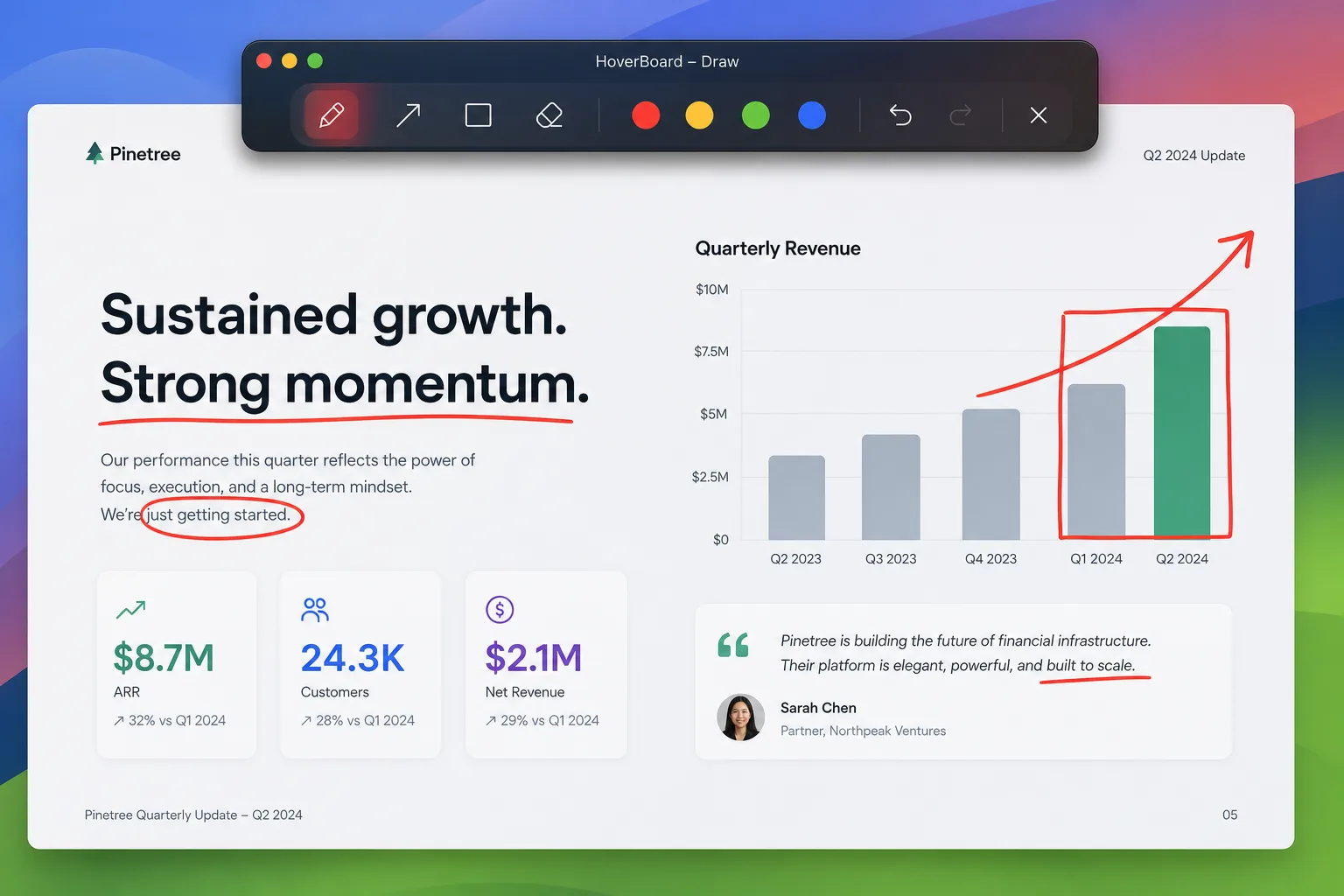
HoverBoard is a native macOS menu bar overlay for the live call:
- Draw and annotate over any app
- Spotlight and Cursor Halo so remote viewers follow the pointer
- Freeze & Explain when the UI changes too fast
- Whiteboard when slides are the wrong canvas
- Keystroke Display for shortcut lessons
- Break Timer for workshops
- Screen Record (free): Full Screen, Selection, or Window → MP4 with mic/system audio, trim, speed, crop
- Sessions to capture frames into a local library
- Local meeting recording, English transcription, and on-device summaries in Pro workflows
Pricing: Spotlight, Break Timer, Screenshot, and Screen Record free forever; Pro Lifetime $11.19 (was $15.99) one-time until 30 Sep 2026 with 60-second trials on Draw and other Pro tools.
Honest limits
Use Loom/Screen Studio when:
- The audience will watch later
- You need hosting, comments, or marketing-grade motion design
- You care more about the edit than the live interrupt
Use HoverBoard when:
- People are watching you live
- Stopping to open an annotation app breaks flow
- You want local-first tools without a video SaaS account
You can (and often should) use both: HoverBoard in the live session, Screen Studio or Loom for the edited recap.
Bottom line
Loom and Screen Studio publish the demo. HoverBoard runs the demo.
Try HoverBoard for your next live walkthrough. Keep Loom or Screen Studio for the polished follow-up.
Related: HoverBoard vs Presentify, HoverBoard vs CleanShot X, Best free screen recorder for Mac, Best annotation tool for macOS.